How to switch channel manager without losing bookings (checklist)
Exports, a quiet window, a booking-by-booking comparison and a rollback plan: the checklist for moving to a new channel manager without losing a single reservation.
 Tai Pham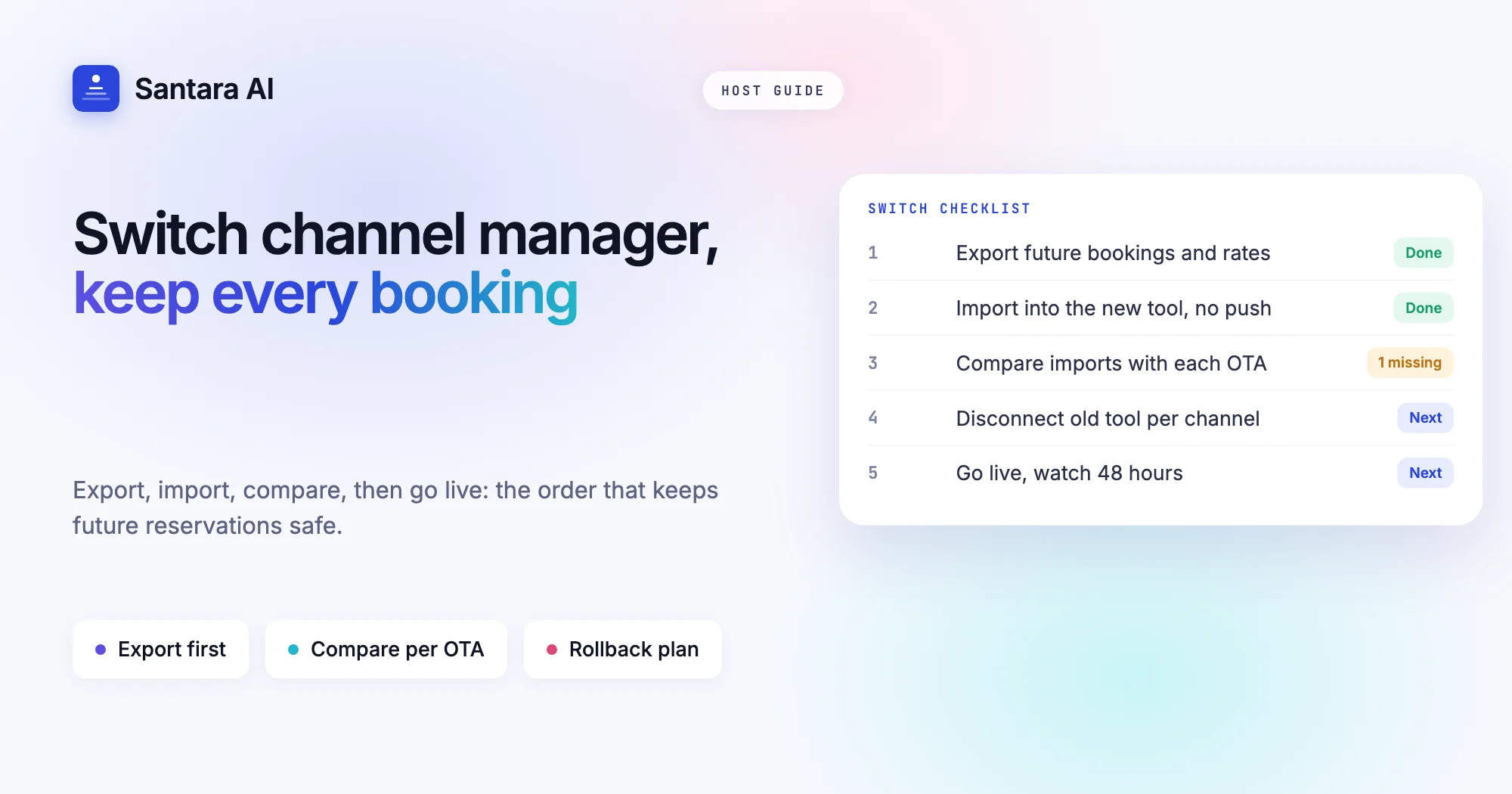
Most hosts who decide to switch channel manager put it off for months. The current tool is annoying, but it works, and the thought of a booking falling through the gap during the move is enough to keep paying for something you no longer like.
That fear is reasonable. A switch is the one moment when two systems can touch the same listing, when future reservations live in one place and not yet in the other, and when a price can quietly change on a channel you are not watching. But the risks are specific, and each one has a check that catches it.
This is the checklist we would follow ourselves: what can go wrong, the order to do things in, how to confirm nothing was lost, and what to do if you need to go back. It works whichever tool you are moving to.
Why hosts change channel manager
The reasons are usually practical, not dramatic. You may have outgrown the tool: you added Booking.com or Agoda and it handles a second channel poorly, or you now run several properties and need more than one OTA account per channel. You may be paying for a separate PMS, messaging tool and channel manager and want one system instead of three. Your current tool may not sync the stay rules you need for peak weeks, such as minimum stay or closed to arrival. Or the team simply finds it hard to use, and hard tools lead to manual workarounds, which lead to mistakes.
If you are not sure what a channel manager should do in the first place, start with how a channel manager actually syncs your calendar. Knowing what should sync makes it much easier to check that it did.
What can go wrong when you switch channel manager
Four things cause nearly every problem when hosts migrate a channel manager.
| Risk | What it looks like | How to prevent it |
| Two systems pushing to one listing | Prices or availability flip back and forth; dates reopen after a booking | Only one tool is connected and allowed to write to each listing at any moment |
| One provider per listing | Connecting the new tool fails, or silently replaces the old connection | Check how each OTA handles it and plan the order per channel |
| Lost future bookings | A guest arrives who is not on your new calendar | Export everything first, then compare the import against each extranet |
| Rates or rules reset | A listing shows an old default price or loses its minimum stay | Write down current prices and rules, then check them on each OTA after go-live |
The second risk deserves a closer look. On many OTAs, a listing or property can have only one connected software provider at a time. On some channels, connecting a new provider ends the old connection automatically. On others, you must disconnect the old one first. Either way, the order matters, and you should know which case applies to each channel before you start.
The fourth risk is easy to miss. When a tool is disconnected, the OTA usually keeps the last values it received, but not always, and a rate plan or restriction may fall back to whatever is set in the extranet. That is why the checklist below includes writing everything down before you touch anything.
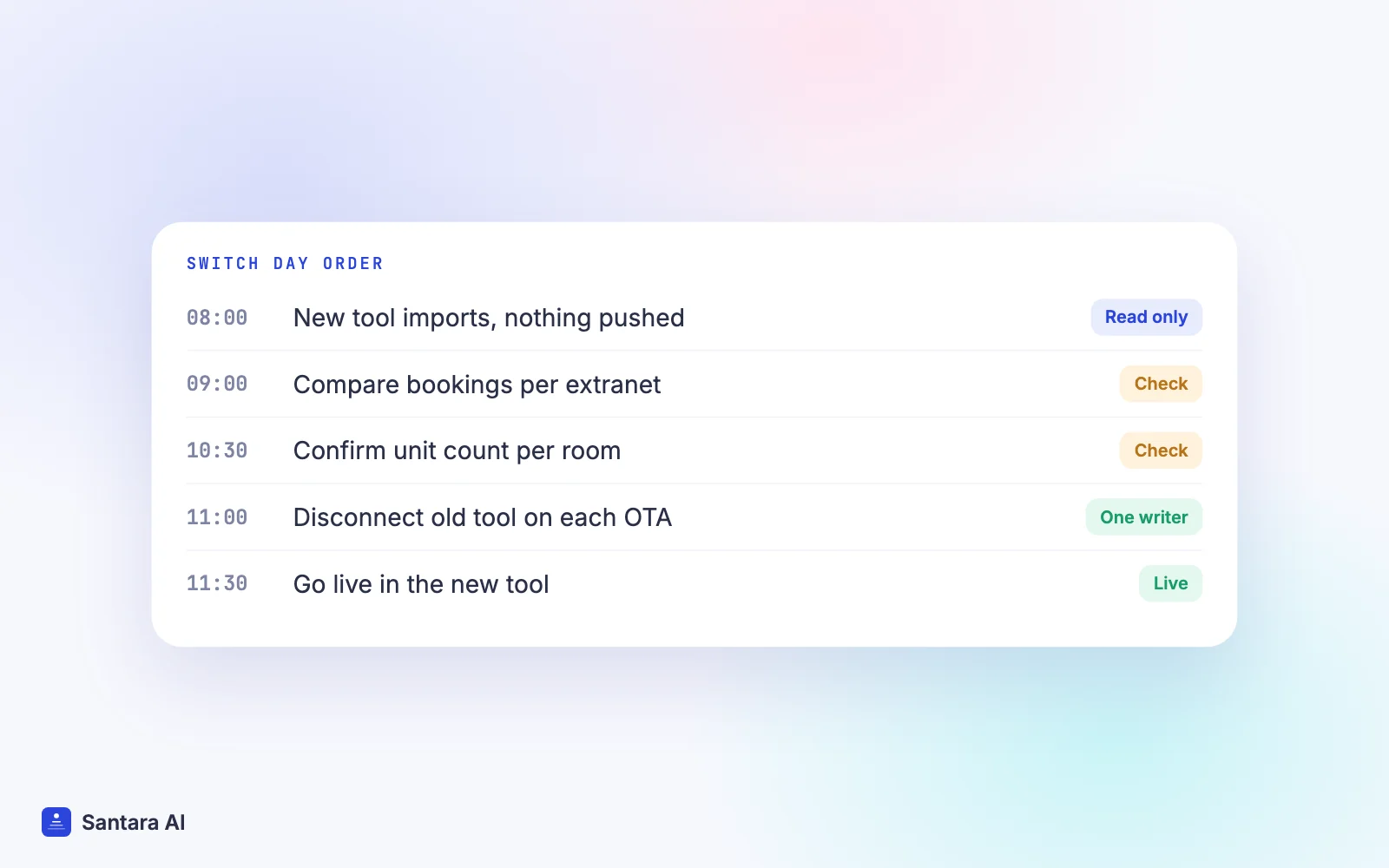
The channel manager checklist, step by step
Plan for one to two weeks from start to finish, with the actual cutover on a single quiet day. Do not rush the comparison step. It is the one that protects your guests.
Step 1
Export future reservations and rate plans from the old tool
Download every reservation with an arrival date from today onward: guest name, channel, confirmation number, dates, room and amount. Then export or screenshot your rate plans, weekday prices, seasonal prices, minimum stays and any closed dates. This is your reference copy. Keep it somewhere outside both tools.
Step 2
Pick a quiet window
Choose a weekday outside peak season, ideally a morning with no arrivals and few new bookings expected. Avoid the weeks before a long holiday, school breaks or the Christmas and New Year rush. If something needs a second look, you want time to look.
Step 3
Connect the new tool and import
Connect each OTA account in the new channel manager and let it import future reservations and, where it can, rates. Do not let it push anything to live listings yet. At this stage you want the new tool reading, not writing.
Step 4
Compare imported future bookings against each OTA extranet
Open each extranet next to the new calendar and go through every future reservation, one by one, using the table below. Look for missing stays, wrong rooms, wrong dates and cancelled bookings that came in as active. Fix or note each difference before moving on.
Step 5
Confirm unit counts
For every room type, confirm how many identical units you actually sell. A room set to one unit when you have three will undersell; a room set to three when you have one is how double bookings happen. This number decides what availability each channel sees.
Step 6
Disconnect the old tool on each OTA
Remove the old provider from each listing or property, following the order you planned for that channel. Do it channel by channel and tick each one off. From this point, only one system should be able to write to each listing.
Step 7
Go live in the new tool
Switch on pushing from the new channel manager. Check that prices, minimum stays and availability on each OTA match what you wrote down in step one. Correct anything that drifted right away.
Step 8
Watch the first 48 hours
Check that new bookings from every channel arrive on the new calendar, that a booking on one channel closes the same dates on the others, and that prices on each OTA still show what you set. Look twice a day. After two quiet days you can relax.
How to compare imported bookings
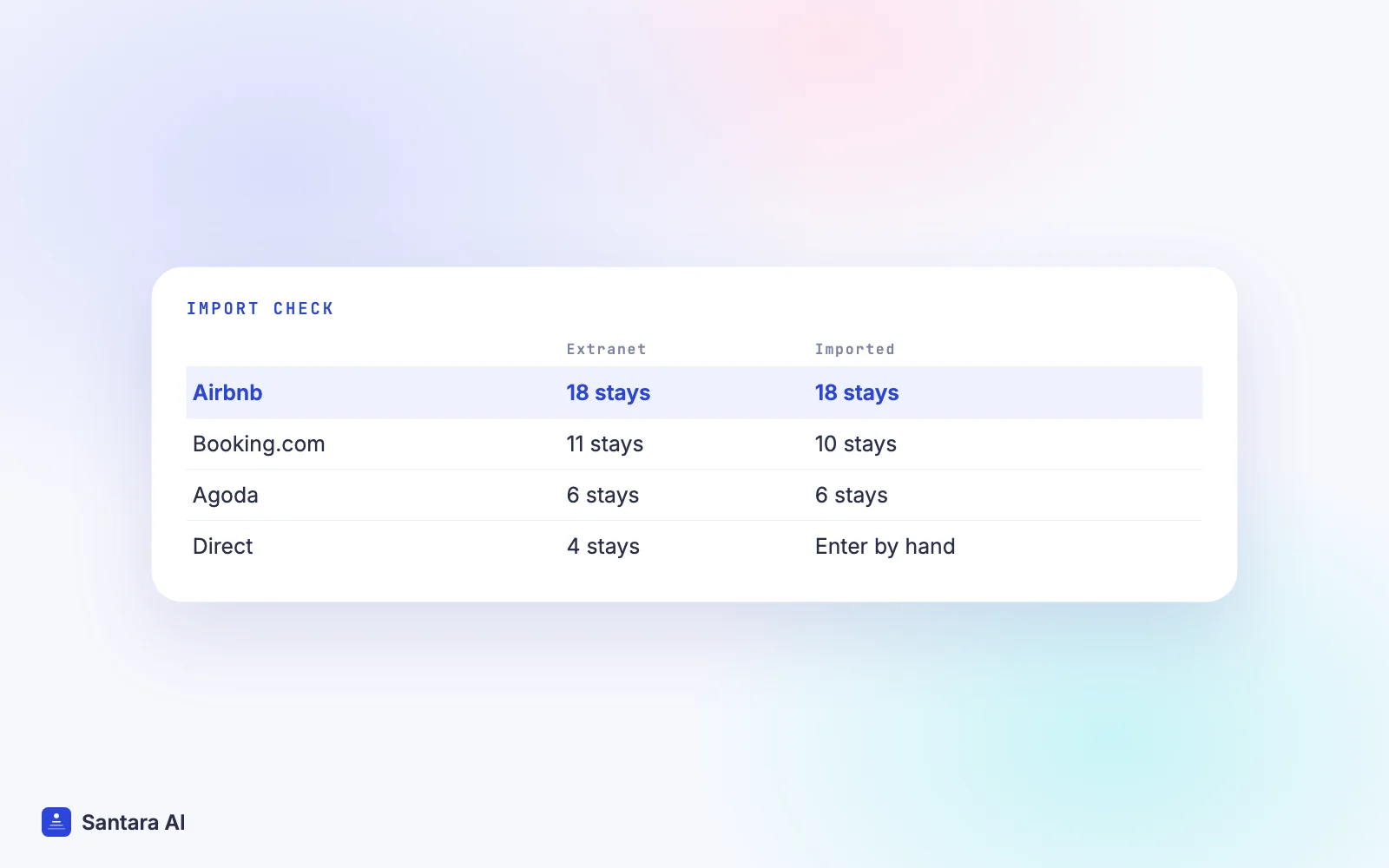
This is the step that catches lost bookings, so make it a simple table rather than a quick glance. Say you run four villas near Canggu across Airbnb, Booking.com and Agoda. Count future stays per channel in each place first, then check details only where the counts differ.
| Channel | Future stays in extranet | Future stays imported | Match? | Action |
| Airbnb | 18 | 18 | Yes | Spot-check 3 dates |
| Booking.com | 11 | 10 | No | Find the missing stay, add it by hand |
| Agoda | 6 | 6 | Yes | Spot-check 2 dates |
| Direct / offline | 4 | 0 | No | Enter manually from your export |
Bookings that never came through an OTA, such as repeat guests who paid by bank transfer, will not be imported by any channel connection. They live only in your export, so enter them before you go live, or their dates will be offered for sale.
Your rollback plan
Write this down before switch day, so you are not inventing it under pressure.
- Keep the old account open. Do not cancel the old subscription until the new setup has run cleanly for at least two weeks.
- Keep your exports. Your reservation list and price notes are the record you rebuild from if anything goes wrong.
- Know how to reverse one channel. If a channel misbehaves, disconnect the new tool on that channel first, then reconnect the old one. Never have both connected at once.
- Close dates by hand if needed. While you sort out a problem, blocking upcoming dates directly in the extranet is safer than leaving them open.
- Decide your trigger in advance. For example: "If a booking is missing or a price is wrong and I cannot explain why within a day, I roll back that channel."
Most switches never need the rollback. Having it written down is what lets you make the move calmly.
Switching to Santara AI
Santara AI replaces both the PMS and the channel manager, so the calendar you check during the switch is the same one you run your business on afterwards. Here is how it handles the steps above:
- You bring your own OTA accounts. Santara AI connects to the Airbnb, Booking.com, Agoda and other accounts you already have. Your listings, reviews and booking history stay where they are.
- Future reservations are imported on connect. For Airbnb, the listing's real rates (nightly price, weekend price and fees where readable) are imported read-only. Anything that cannot be read safely is reported to you instead of guessed.
- Nothing pushes until you go live. You confirm each room's unit count before anything is sent to a live listing. That gives you time to compare the import against each extranet first.
- Several accounts per channel. If you run two Airbnb accounts, for example, you can connect both.
- Disconnecting never deletes. Disconnecting a channel stops sync. It never deletes your OTA listing or its reservations, which keeps your rollback simple.
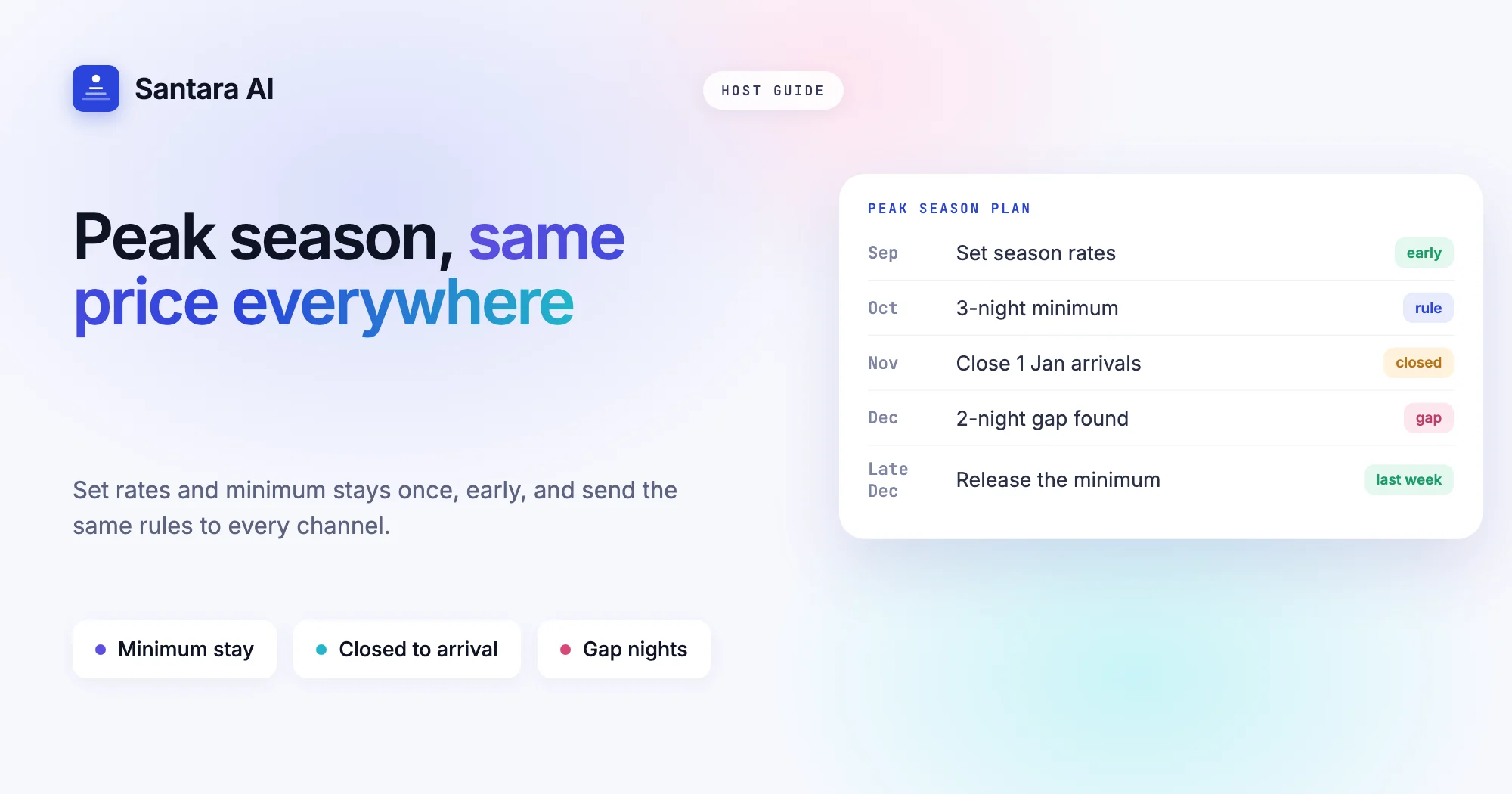
Once live, availability, nightly rates, minimum stays and closed to arrival or departure are set on one calendar and pushed to every connected channel, out of 54 in total. See the full list on the integrations page. If you want to set up seasonal prices and stay rules properly after the move, read how to sync prices and minimum stays across channels.
What Santara AI does not do
Santara AI does not create OTA listings for you; you need an existing account and listing on each channel. Photos, descriptions and other listing content are not pushed to OTAs, so keep editing those in each extranet. And bookings that never went through a connected channel need to be entered by hand.
FAQ
How do I switch channel manager without losing bookings?
Export every future reservation from the old tool, import into the new one without pushing, compare the import against each OTA extranet, then disconnect the old tool and go live channel by channel. Watch the first 48 hours.
Can two channel managers be connected to the same listing?
Usually not, and you should not try. Many OTAs allow only one connected provider per listing, and two systems writing to the same calendar is a common cause of wrong prices and reopened dates.
Will my reviews and listing history move when I change channel manager?
They do not need to move. Reviews and history belong to your OTA listing, not to the channel manager, so they stay when you connect a new tool to the same account.
How long does it take to migrate a channel manager?
The cutover itself fits in one quiet day. Allow one to two weeks overall for exporting, comparing bookings, watching the first days and keeping the old tool as a fallback.
Keep reading
- PMS vs channel manager: do short-term rental hosts need both?
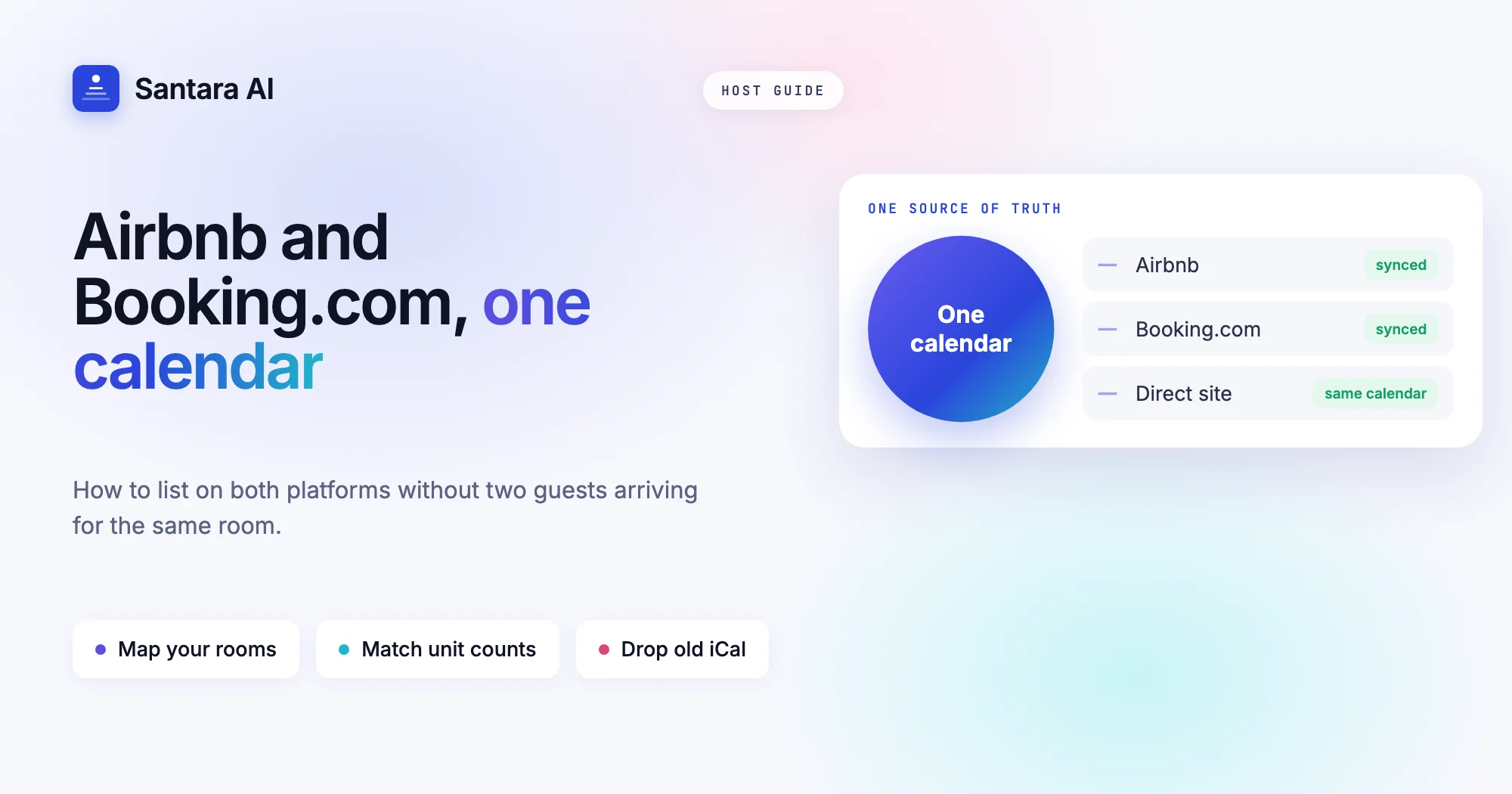
- Airbnb and Booking.com together without double bookings
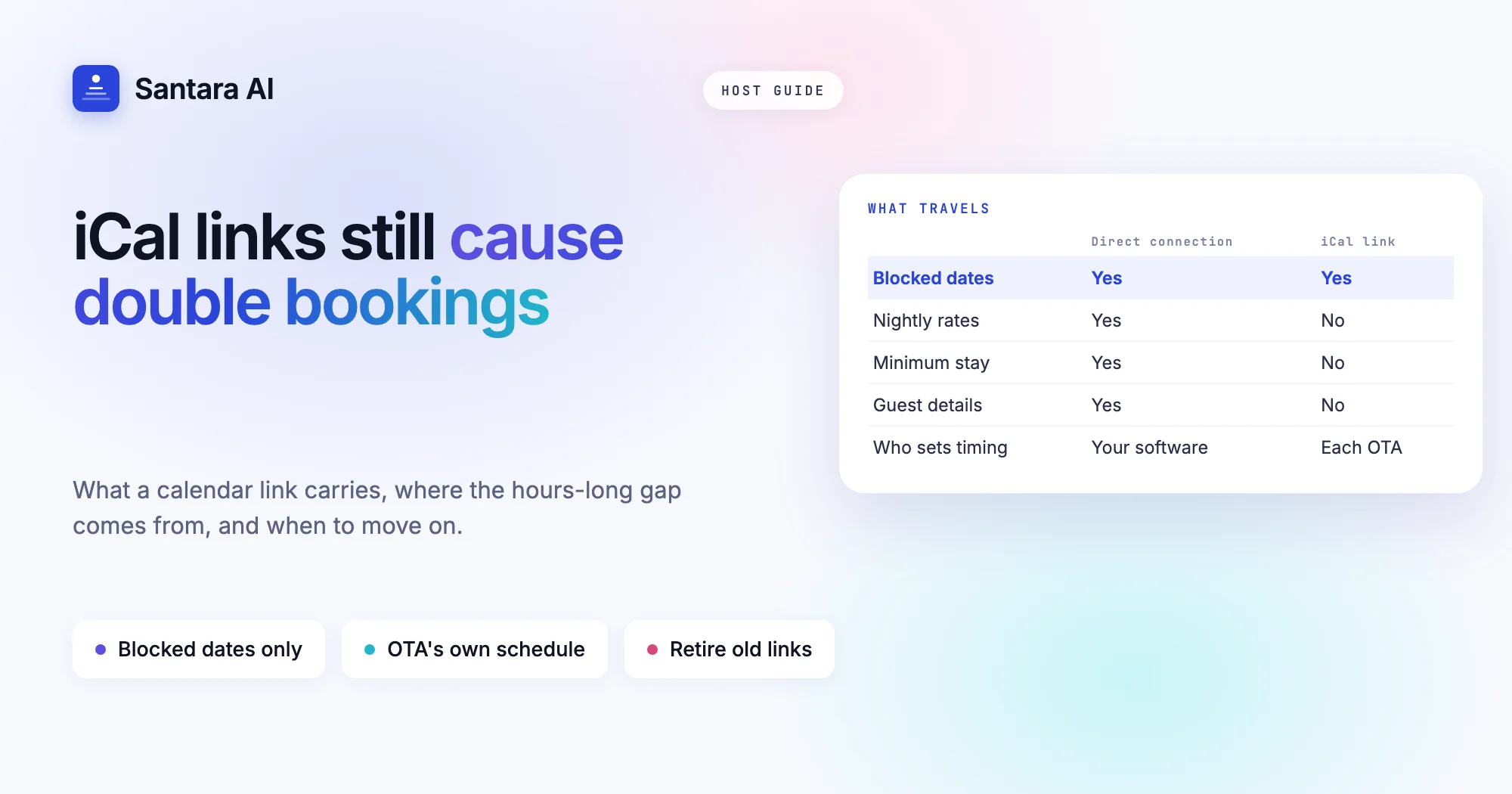
- iCal vs channel manager: why calendar links still cause double bookings
Your first 3 months are free.
Join For Free